Introduction
The following procedure will guide you through the creation of a new project for your web app using either Visual Studio Code or Eclipse. At the end you will have a Web Project that can be run in a Java EE server (e.g. Tomcat) with all the needed layers set up and ready for customization:
-
Database access layer with transactions (Hibernate / JPA / Spring)
-
Web application controller (Spring)
-
Page templates (Thymeleaf)
-
Security (Spring)
You will also have a basic deployment procedure already set up:
-
Database schema generator
-
Configurations for development, test and production
-
Deployment script
Prerequisites
You should have Java, git, MySQL Community Server and a working copy of either Visual Studio Code or Eclipse IDE. Check the notes in this section before installing anything.
Java SDK
The more robust way to install Java is to download and uncompress the zip archive of the needed SDK in some folder like C:\Local\Javas\jdk-21.0.8 and
make a symbolic link to it with a generic name, like C:\Local\jdk21.
mklink /D /J C:\Local\jdk21 C:\Local\Javas\jdk-21.0.8Now you can refer to C:\Local\jdk21 in your scripts and when you update the java (minor) version you just change the link, not the scripts.
Currently the Yada Framework source is tested with Java 21. Running on an untested version might give weird errors.
GIT
Install git for your OS.
MySQL
Install MySQL Community Server v8: any later versions have not been tested yet.
For a future-proof installation you should not install MySQL as a Service, but run it manually when needed because one day you might want to use different versions in different projects.
If you already have a MySQL installation, you may use it. Just check that the "lower_case_table_names" system variable is set to "2": if it’s not, it can’t be changed after installation so you can either reinstall, install a new instance or live with it (see below).
If you don’t have a MySQL installation already, the easiest way to install it is by downloading the "MySQL installer":
-
on the MySQL Download Page click on "MySQL Installer": you will be presented with two downloads, the smaller one is the "web installer" and it’s the one you should use. You will be asked to login or register before download but there’s also a link to download right away.
-
run the installer and choose the version you want to install: be sure to check the "Enable the Select Features page to customize product features" checkbox before continuing (NOTE: not sure it’s needed but do it anyway) because you’ll need to set the "lower_case_table_names" system variable before installation. If you don’t do this on Windows, you either need to uninstall and reinstall the MySQL server or ignore the "lower_case_table_names" setting, in which case you might write SQL queries that don’t work on the production Linux servers
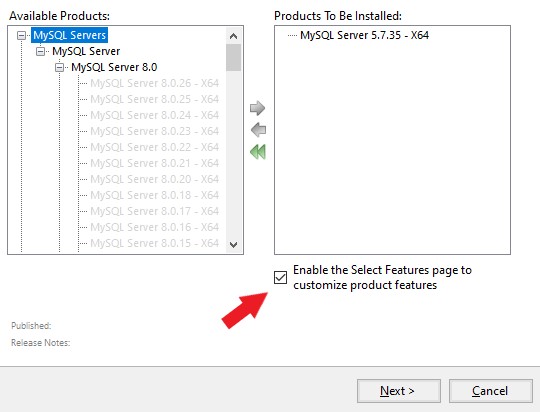
-
when installing you will get to some wizard pages that allow to select the following:
-
"Show Advanced and Logging Options" should be checked
-
authentication method: any would do
-
root password: you may leave it blank on your development computer (do as you wish)
-
install as a service: you should not configure the server as a service if you have many versions on the same port and want to start the one you need manually (recommended approach)
-
"Advanced Options": "Preserve Given Case" should be checked. This will set the "lower_case_table_names" appropriately as explained above
-
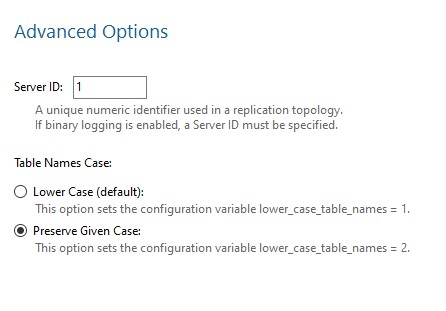
After installation, make a symbolic link to the server folder with a generic name, like
mklink /D /J C:\Local\mysql80 C:\local\Mysqls\mysql-8.0.19-winx64Now you can refer to C:\Local\mysql80 in your scripts and when you want to use a different installation
you just change the link, not the scripts.
In order to start/stop the MySQL server you should create two scripts and put their shortcut somewhere easy like the desktop or the taskbar.
set MYSQL_HOME=C:\Local\mysql80
set PATH=%MYSQL_HOME%\bin;%PATH%
C:\Local\mysql80\bin\mysqld.exe --defaults-file="%MYSQL_HOME%\my.ini" --consoleset MYSQL_HOME=C:\Local\mysql80
C:\Local\mysql80\bin\mysqladmin.exe -u root shutdownIt is very convenient to set an empty password for root on the development computer (the above script won’t work otherwise):
mysql -u root -p
SET PASSWORD FOR 'root'@'localhost' = '';
When you start MySQL you may get a few errors and warnings like "Failed to set up SSL" or "Cannot open Windows EventLog": you can safely ignore them as long as the process doesn’t stop.
IDE
You can edit the source files and compile the binaries in any IDE. This documentation only shows how to set up Visual Studio Code (and derived) and Eclipse, in the following sections:
Follow the relevant section then come back to this page.
Node.js (optional)
Node.js is not strictly needed but it can be useful. Install the latest LTS version.
The Build File
Replace your build.gradle with the contents of /YadaTools/scripts/template.gradle.
The lines marked with // CHANGE THIS !!! should be edited to suit your needs.
In the bookstore tutorial we use the ybs acronym and keep all the defaults.
ext.acronym = 'ybs'
|
The Yada Framework has the concept of "environment" built in: an environment is an installation of the application. There can be a development environemnt that runs on your computer, a test environment that is deployed on a remote server and is used for testing, a production environment that is deployed on a remote serer and is used by the end users. |
The default environments are "dev" for "Development", "tst" for "Test" and "prod" for "Production".
You can rename them (or also add/remove some) using the "envs" property in the yadaInit task of the build,
but the envs array must always have the "development" environtment first and the "production" environment last
in order to create a correct configuration.xml file. For a list of all other options for the yadaInit task
see /YadaTools/src/main/groovy/net/yadaframework/tools/YadaProject.groovy
Replace your settings.gradle with the following:
rootProject.name = 'MySiteProject'
include 'YadaWeb'
project(':YadaWeb').projectDir = "../../yadaframework/YadaWeb" as File
include 'YadaWebSecurity'
project(':YadaWebSecurity').projectDir = "../../yadaframework/YadaWebSecurity" as File
include 'YadaWebCMS'
project(':YadaWebCMS').projectDir = "../../yadaframework/YadaWebCMS" as File
include 'YadaWebCommerce'
project(':YadaWebCommerce').projectDir = "../../yadaframework/YadaWebCommerce" as File
You should change the project name to whatever you used. The above assumes that you cloned the yadaframework repository in the same root folder of your project repository as explained in "[Add the repositories]" above. This setup is needed to use YadaWeb class files directly instead of going through the jar, and is handy when you plan to work on the YadaWeb sources to fix and improve them.
Use rootProject.name = 'YadaBookstore' for the bookstore tutorial.
Copy the /YadaTools/scripts/sass.properties file into the project folder.
Code Generation (just a bit)
Ensure you have these folders in your project before the next step, and create them when missing:
-
src/main/java -
src/main/webapp
Use the Gradle > Refresh Gradle Project project menu item to initialise the project.
Check the Elcipse console (Window > Show view > Console) to see if there are any problems.
|
If you get the error "Java compiler level does not match the version of the installed Java project facet"
you may have an inconsistent workspace, probably because you changed the default Gradle options during project creation.
Check that the file |
Open a command prompt in the root folder of your project (e.g. C:\work\git-mysite\MySiteProject) and run gradlew yadaInit --no-daemon.
For the bookstore tutorial:
cd C:\work\git-yadabookstore\yadabookstore\YadaBookstore
gradlew yadaInit --no-daemon
This task will add the java core Spring configuration and some default files that later will have to be either deleted or customised. The "--no-daemon" option is to stay on the safe side.
|
You can run the task multiple times and it will never overwrite existing files: to revert a change, delete the file and run the task again |
Refresh your project in Eclipse (F5). If you see compilation errors ensure that you’re just missing some classpath libraries and do a "Refresh Gradle Project" again. If you still have errors, try to fix them ;-) For example you might need to remove the dependency on YadaWebSeurity classes if you didn’t want to use it.
This may be a good time to commit and push to git.
Initial Customization
By default, all files used and created by the application are to be found inside the /srv/<acronym><env> root
folder,
where <acronym> is the value of ext.acronym in the build.gradle file and <env> is the "environment",
as explained in The Build File above. This folder should be manually created.
The predefined application user is (literally) admin@EXAMPLE.com with password myAppPassword.
Before starting the server for the first time, you may want to change that values by editing
the /src/main/resources/conf.webapp.dev.xml file at the <user> tag. The data is stored in the database on first startup
and never read from file again, so this is the best time to change it to your likes.
More users can still be added later: only existing users are ignored.
There are some other items that can be customized but they can wait for later:
-
configuration files
-
log configuration
-
startup actions in
Setup.java
For the YadaBookstore application, the default root folder is /srv/ybsdev. You should change the
admin user email to your own email address in order to receive emails from the application.
Database Setup
|
You can skip this section if you’re not going to use a database (yet), but also Security will be disabled. Set <database enabled="false"> in the configuration. |
The default database schema, user and password are found in /src/main/resources/conf.webapp.dev.xml, /src/main/resources/META-INF/persistence.xml, /src/main/webapp/META-INF/context.xml and
/env/dev/createDatabaseAndUser.bat. If you want to change them, do so in all files.
For the YadaBookstore application, the default values are:
schema |
ybsdbdev |
user |
ybsuserdev |
password |
mydevpwd |
To create the database and user, run the /env/dev/createDatabaseAndUser.bat
(if you’re not on windows, just copy the content and adapt it to your platform).
On Windows you can open a cmd window and drag the file there from Eclipse, then just press Enter.
If all goes well, you can now generate an initial schema by running the dbSchema gradle task. The schema
will be derived from the classes listed in /src/main/resources/META-INF/persistence.xml so, to simplify the schema,
you may revise this file and remove any unneeded classes. You will always be able to remove/add a class later
though you will have to manually delete the removed classes from the database too.
As you will be generating a new schema often, you should create a "Run Configuration" in Eclipse to generate the schema. Click on "Run > Run Configurations… > Gradle Task" then press the "New launch configuration" icon. A new configuration called "New_configuration" will be created. Change the name to anything you like, for example "MySiteProject - DB Schema", add a Gradle Task named "dbSchema", set your application project as the Working Directory, then in the "Common" tab choose "Save as > Shared file" and type "\MySiteProject\Launches"
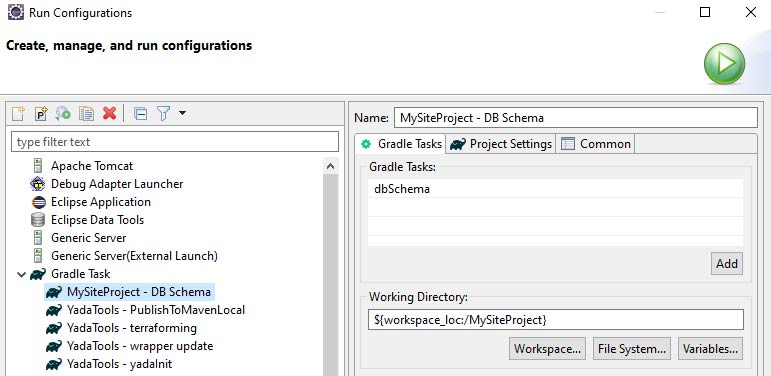
You can now run the schema creation task with a press of a button.
You may get some compilation errors that need to be fixed before trying the generation again.
If the schema generator can’t connect to the database check that all configuration files listed above (persistence.xml etc.) have the correct DB login credentials.
If all goes well, the output will be written to the /schema folder (you might need to refresh it in Eclipse with F5).
To load the schema into the database you may use the /env/dev/dropAndCreateDatabase.bat
script (or an equivalent linux/mac version) but it is more convenient to have the schema loaded
by Flyway at first application run: just copy it in the /src/main/resources/database folder with a name like V001__baseline.sql.
Tomcat server
This section is about setting up a standalone Tomcat server that can be controlled from Eclipse.
|
You can skip this section if you’re going to use the embedded version of Tomcat (recommended option for a generic use case). |
Skip this section for the bookstore tutorial.
Download Apache Tomcat 8.5 "64-bit Windows zip" and unzip the folder to some place like C:\local\Tomcats\apache-tomcat-8.5.51.
Create a new folder where you will keep all your web application deploys, like C:\local\Deploy.
In Eclipse, while in the "Java Perspective", show the "Servers" view from "Window > Show View > Other… > Server > Servers".
You will see the link "No servers available. Click to create a new server…". Click that link. You will see a dialog
where you should choose "Apache > Tomcat v8.5 Server". In the Next dialog choose your "Tomcat installation directory",
for example C:\local\Tomcats\apache-tomcat-8.5.51, and finish.
Just to be safe, check that Tomcat works by running it and browsing to http://localhost:8080/. If all is fine, you should see
an error from Tomcat:
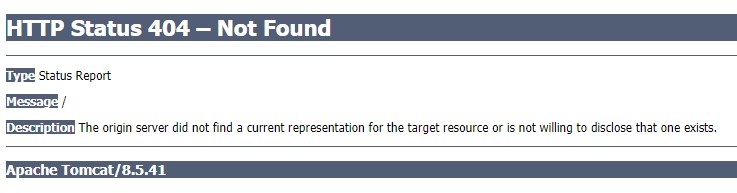
Stop Tomcat then right-click on it and choose "Open". You will see the Overview:
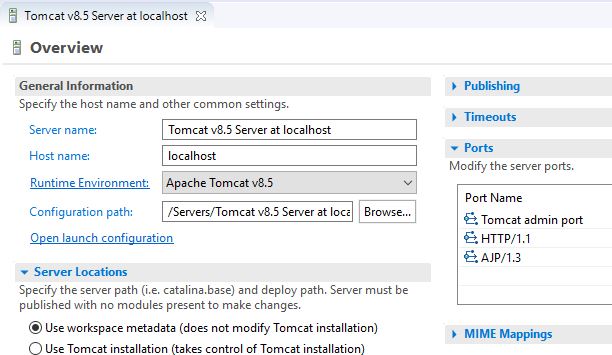
On this page do the following:
-
Under "Server locations" set "Use custom location > Server path" to
C:\local\Deploy\myProjectwhere "myProject" is anything you like -
Under "Server Options" uncheck "Modules auto reload by default"
-
Under "Timeouts" add a trailing 0 to both timeouts so that 45 becomes 450 and 15 becomes 150
-
Save with CTRL+S.
If your sources in the "Package Explorer" window don’t have any red marks (no compilation errors), you can add the web application to Tomcat:
-
Right-click on the Tomcat server in the "Servers" view
-
Select "Add and Remove… > Add All >>"
If the server starts with no errors, you can see the homepage placeholder at http://localhost:8080/
Embedded Tomcat
This section is about running the embedded Tomcat server.
|
You can skip this section if you’re going to use the standalone version of Tomcat. |
The application is started by running the net.yadaframework.core.YadaTomcatServer class.
It accepts two mandatory arguments and an optional one:
- acronym+environment
-
a string that will be used by the shutdown command
- webapp folder
-
relative path of the webapp folder in eclipse ("src/main/webapp"), or the full path elsewhere
- temp folder
-
optional in Eclipse, it must be the full path of the temp folder for Tomcat data (where the war is exploded)
When the last argument is missing, "developer mode" is assumed and the HTTPS connector is enabled. It’s not
enabled in all other environments because HTTPS is supposed to be handled by Apache.
The YadaTomcatServer class can be overridden or rewritten to achieve a different behavior.
The command line to start the application on the developer PC is something like
java net.yadaframework.core.YadaTomcatServer ybsdev src/main/webappThis can be easily added in Eclipse as a "Java Application" entry in the "Run Configurations" dialog.
After running the server, point the browser to http://localhost:8080/ in order to see a skeleton home page.
Troubleshooting
Compilation Errors
In case of compilation errors, the first thing to do is to run a "Refresh Gradle Project" on the affected project or the including project. If errors persist, check that you have imported all the needed Yada projects. Also be sure to have "Projects > Build Automatically" checked and try with a "Project > Clean…".
Validation Errors
If you get an error like
CHKJ3000E: WAR Validation Failed: org.eclipse.jst.j2ee.commonarchivecore.internal.exception.DeploymentDescriptorLoadException: WEB-INF/web.xml
you may fix it just by forcing a validation on the project via the menu.
Tomcat Startup Errors
If Tomcat doesn’t start, it might have stale data. Try with a "Clean…" on the server. If everything fails, stop the server and delete the content of the Deploy folder,
for example C:\local\Deploy\myProject. Then do a "Publish" on the server. If you can’t delete some file because Windows says it’s open, you’ll need to quit Eclipse
and be sure that there are no ghost Tomcat processes running. In extreme cases, you might need to restart your PC.